![10 Best DMCA Ignored Hosting In 2026 – [Tested & Reviewed]](https://bestdmcaignoredhosting.com/wp-content/uploads/2026/07/best-dmca-ignored-hosting-BLLACK-logo-png.png)
Imagine you wake up to find your entire website has gone; you have lost your data, your files are deleted, or worse, it got hacked by cybercriminals.
This is exactly why backing up is so important, and it’s not optional for you. Sometimes it could be an accidental deletion, a security breach, or your server crashing.
You could even be preparing to migrate to a new hosting provider, so a solid backup strategy is a lifesaver.
DirectAdmin is a powerful control panel used by thousands of hosting providers worldwide, helping website owners manage their hosting account with ease and security.
If you’re using DirectAdmin, you’re already in a great position to protect your data.
Here, we’ll guide you through the simple process of how to create backups in DirectAdmin step-by-step with proper screenshots.
So, currently I have QloudHost’s shared hosting plan. So I have added all steps images here.
After reading this, you’ll know exactly how to safeguard your website and sleep peacefully.
Why You Should Regularly Backup Your Website
A website backup is like insurance for your online presence. You wouldn’t drive a car without insurance, so the same goes for you: you shouldn’t run a website without regular backups.
Let’s explore the main reasons why backing up your website regularly is non-negotiable.
- Server Crash: Your hardware fails, and the server breaks down. When your hosting server crashes unexpectedly, your entire website can vanish in seconds. A recent backup means you can restore everything quickly and get back online without losing months or years of your customer data and content.
- Malware Attack: Hackers are always hunting for weaknesses. When malware affects your site, it corrupts your files, steals your data, and damages your reputation.
If you have a clean backup before the attack, you can easily wipe the infected files and restore your website to its healthy state, rather than spending weeks cleaning up the mess. - Human Error: We all make mistakes. It could be a wrong click, a deleted file, or an accidental database wipe that can happen to anyone. It could be you or someone from your team. Backups help you to undo these mistakes instantly without you being panicked or facing unnecessary downtime.
- Plugin/Theme Conflict: You just updated your plugin, and suddenly your site broke? A conflicting theme update crashed your pages; many situations like this can happen many times; therefore, backing up everything should be given prior importance.
Backups are just like your quick fix. You can restore to a working version in minutes instead of troubleshooting for hours. - Migration: If you are planning to switch hosting providers or move to a new server, then too, backup is going to be your lifesaver. Backups make the transition very smooth and risk-free. You can migrate your entire site with confidence, knowing you have a safety net if something goes wrong during any transfer.
If you don’t have a backup, then one bad day can easily turn into a permanent disaster. You could lose years of content, your customer data, and business records with no way to recover them.
Apart from this, your reputation also takes a hit, as your customers lose trust in your ability to protect their information.
Your revenue even dies down as your site remains offline during recovery attempts. Plus, you might face legal consequences if customer data is compromised.
So, backup is not just about downtime; it’s about the long-term damage to your business that could have been prevented with a simple backup strategy.
Prerequisites Before Creating a Backup
Creating a backup in DirectAdmin is not complicated at all, but you do need to check a few things first. It’s just like packing for a trip, so you need to know where you’re going and what you can carry.
If you just jump into the backup process without these basics, then it can easily lead you to failed backups, missing files, or storage issues.
Here is a clear guide of what you require before you start creating your backup.
- DirectAdmin login access
You need all that only, to access your DirectAdmin. If you have forgotten your login credentials, contact your hosting provider immediately, as they can easily reset them for you.
Some hosting providers send you login details when you first sign up; if you can’t find them, check your email spam folder. Once you log in, you’ll see your dashboard with various options.
The backup feature is usually located in the main menu under “Advanced Features” or “Backups.” If you don’t have your proper login access, you won’t even have a good start.
- Sufficient disk space
Your backup needs somewhere to live. If your website contains 5 GB of files and databases, you need at least 5-6 GB of free space on your hosting account to create that backup. DirectAdmin won’t let you create a backup if there is no space for it; it’s like trying to fit a large suitcase into a tiny closet.
You should always check how much space you’re currently using versus how much your hosting plan allows. Most of the hosting control panels show this information on the dashboard only.
If you’re running low on space, either delete your unnecessary files, upgrade your hosting plan, or download the backup to your computer and then delete it from the server to free up your space.
- Active hosting plan details
You should always know what you’re working with. Your hosting plan type matters because it determines what you can and cannot back up. Shared hosting plans typically allow backups of everything (files, databases, and email accounts), while some budget plans might have restrictions.
Check your hosting agreement or contact your provider to understand your plan’s backup capabilities. Some providers even limit backup frequency (maybe only one backup per day) or backup storage (where old backups are automatically deleted after 30 days).
Also ensure that your hosting plan is currently active and paid, as a suspended account won’t allow your backups to happen.
- (If applicable) FTP/SSH access
If you are dependent on your hosting provider for your backup, you might need FTP (File Transfer Protocol) or SSH (Secure Shell) access.
Most of the shared hosting plans use FTP, while VPS and dedicated servers typically use SSH.
These protocols let you transfer large backup files from the server to your personal computer. You can ask your hosting provider if FTP/SSH is included with your plan, as most of the plans do include it. If it’s available, make sure you have your FTP/SSH login credentials handy.
Now that you understand what you need, you’re ready to move forward. If you have all these prerequisites in place, your backup process will run smoothly without interruptions or errors.
In the next section, we’ll take you through the backup creation process step by step, with clear screenshots so you can see exactly what to click.
How to Create a Backup in DirectAdmin? 2026 Step-by-Step Guide
Now, let’s begin creating your backup in DirectAdmin.
It takes only a minute and protects your entire website, or you can choose what you want to protect.
So, this time I have QloudHost shared hosting plan. QloudHost makes this process quite simple with their easy-to-use DirectAdmin setup.
| What You’ll Need? Your DirectAdmin login credentials (your hosting provider will provide this) Your DirectAdmin URL (QloudHost provides this when you purchase their shared hosting plan in your welcome email). QloudHost provides a direct login URL in your client area section once you log in to their website. Web browser (Chrome, Firefox, Edge, or Safari) |
Let’s start.
- Step 1: Open your browser >> Type the DirectAdmin URL that your host provides you >> Example: yourdomain.com:2222 or a custom URL.
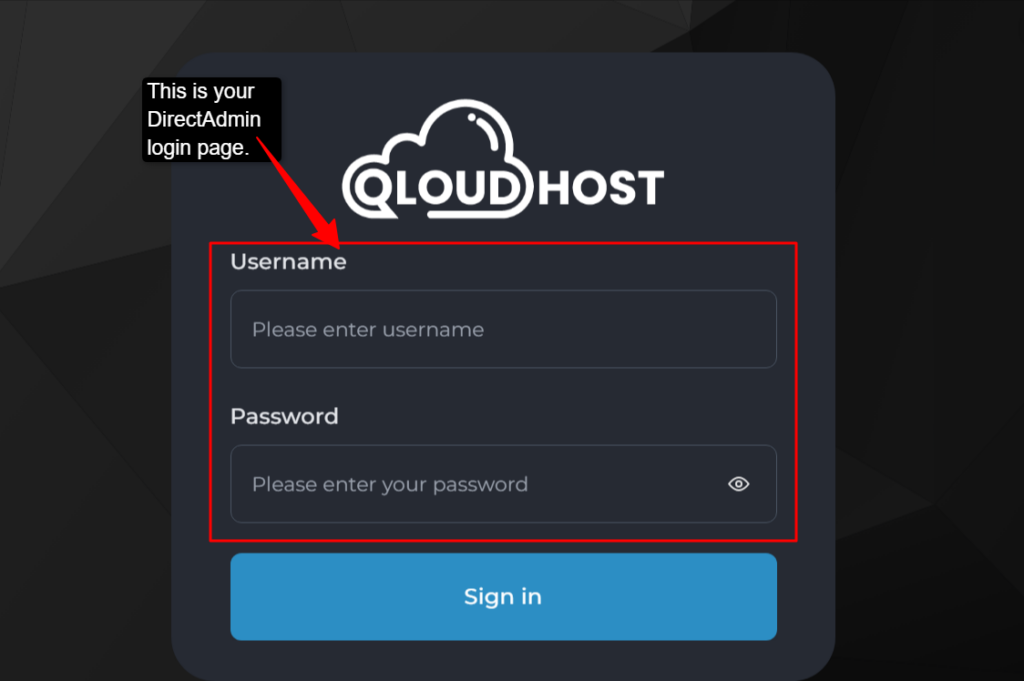
- Step 2: Click on the DirectAdmin URL >> You’ll see the login page >> Enter your username >> Enter your password on the DirectAdmin login page >> Click on the login button.
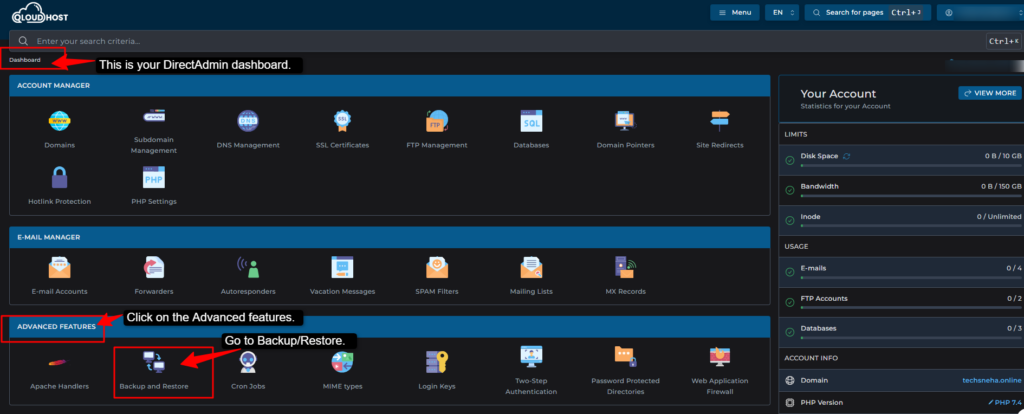
- Step 3: Once you’re logged in, your DirectAdmin Control panel opens. >> If you see on the left side of the panel, you’ll see a menu with different options. >> Find Advanced Features >> Click on “Backup and Restore.”
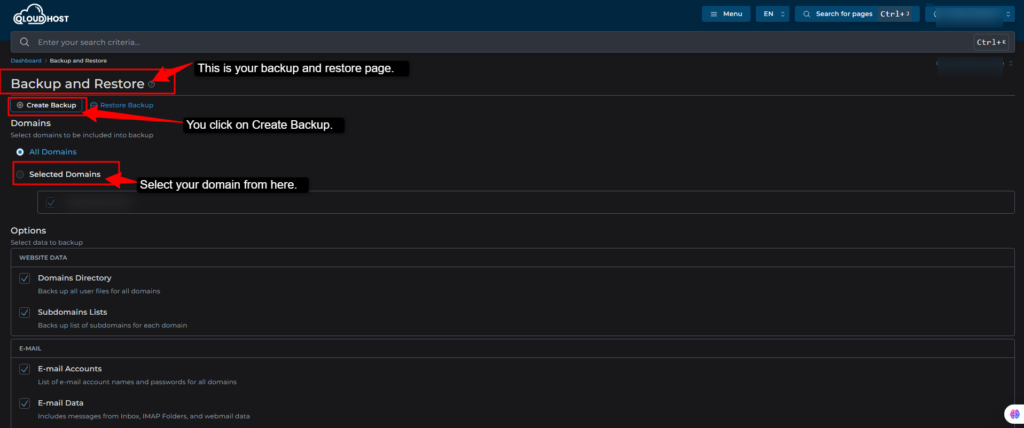
- Step 4: Once you open “Backup and Restore,” >> Enter your domain name >> select your domain name.
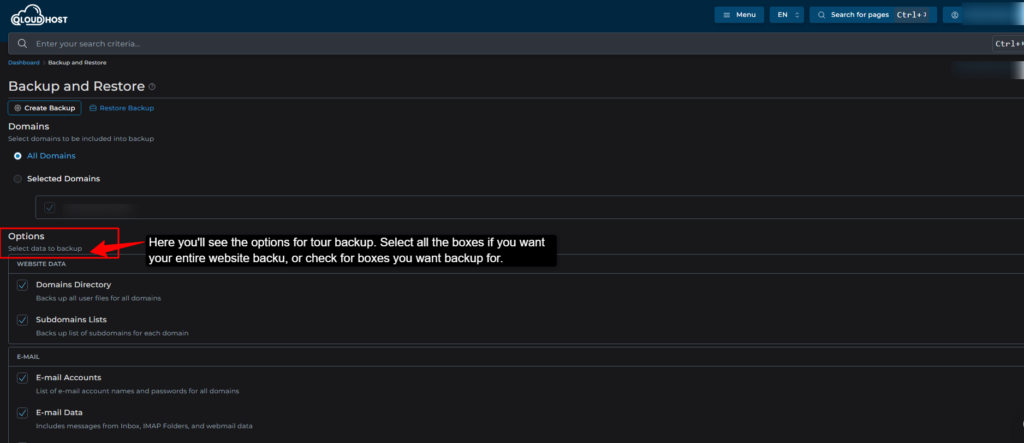
- Step 5: Once you select your domain >> You’ll see multiple options, as in you can backup your entire website if you select all the boxes, or you can just select the options for which you want to backup.
- Step 6: Once you check all the boxes for your website >> below, in the right-hand corner, you’ll see a box for backup >> Click on that.
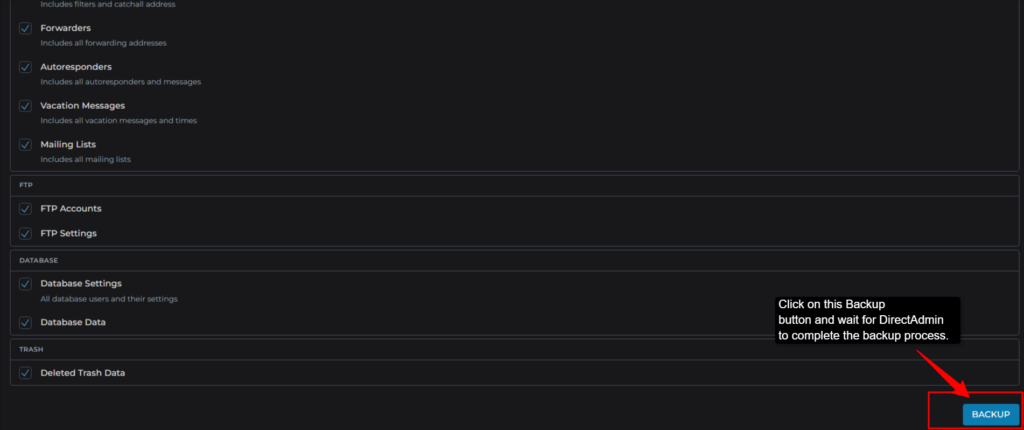
- Step 7: Once you have clicked on the Backup >> Go to the System Info & Files >> Go to File manager >> You will see a folder by “Backup” >> Open it and you can see your backup.
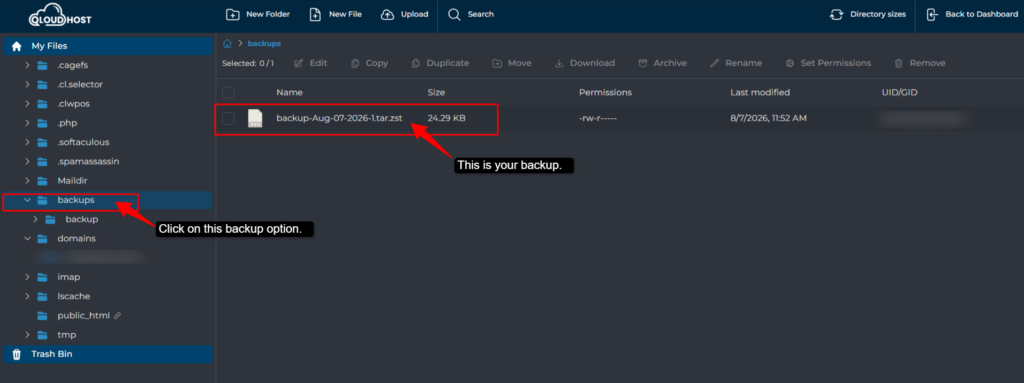
Now, you’ve completed all the steps. Wait for the backup to complete; DirectAdmin is copying all your website files.
| Important ❌DO NOT close the browser window. ❌DO NOT refresh the page. ❌DO NOT switch off your computer. Just leave it and wait. |
After the waiting time is over, you can easily download your backup file on your computer.
Your website is now protected against server crashes, hacking attacks, accidental deletion and any form of disaster.
How to Schedule Automatic Backups in DirectAdmin (Bonus Section)
Manual backups are good, but automatic backups are always better for obvious reasons. Because then you won’t forget. Life often gets busy, with running your website, managing content, or handling your customer emails.
But then scheduling your automatic backups ensures that your website is protected 24/7. So, let’s understand how you can set this up easily.
- Step 1: Access the Backup Schedule.
- Step 2: Set your backup frequency with different options like Daily backups, weekly backups and monthly backups.
- Step 3: Set the Backup Time
- Step 4: Select Backup Type
- Step 5: Set Retention Period
- Step 6: Enable Email Notifications
- Step 7: Save your settings.
That’s it. Your website is now automatically backed up on schedule. You don’t need to do anything else; DirectAdmin handles it automatically from here on.
How to Restore a Backup in DirectAdmin?
Creating your backups is only half the battle, because when any disaster strikes, it could be hacking, accidental deletion, or your server crashing. At this point, you should know how to restore your website quickly. Here’s how to bring your site back to life using DirectAdmin.
- Step 1: Access Your Backup Files
- Step 2: Select the Right Backup
- Step 3: Choose What to Restore. Choose from the full restore and selective restore options.
- Step 4: Confirm and Start Restore
- Step 5: Wait for Restoration to Complete
Check your website once the restoration is complete. Once it’s done, visit your website. Verify that everything looks normal and check that all the pages are loading properly.
You should even test the key functions (contact forms, login areas, etc.).
Common Errors & Troubleshooting
Even with the best setup, backups can sometimes fail or run into problems. Here are the most common issues you will encounter and exactly how to fix them.
Error 1: Insufficient Disk Space
DirectAdmin cannot create a backup because your hosting account does not have enough free space.
Fix:
- Delete unnecessary files (old uploads, logs, and unused plugins).
- Clear your email trash and spam folders.
- Compress old database backups already stored on the server.
- Download backups to your computer and delete them from the server.
Error 2: Backup Failed or Backup Incomplete.
The backup started but did not finish. Your files or database may be partially backed up.
Fix:
- Wait 1 hour and try again (might be temporary).
- Check if disk space is available (see Error 1).
- Try manual backup instead of scheduled backup.
- If the backup is stuck, restart it by going to Backup/Restore and clicking “Cancel” then “Start New Backup.”
Error 3: Restore Failed or Cannot Restore.
You tried to restore a backup, but DirectAdmin could not complete the restoration.
Fix:
- Try restoring from a different (older) backup.
- Check if you have enough disk space for restoration.
- If multiple backups fail, contact your hosting provider support immediately.
| Warning: If all backups fail restoration, don’t panic; just contact the support of your hosting provider before attempting anything else. |
Error 4: Backup Scheduled But Not Running
Your scheduled automatic backups, but they’re not actually happening. You’re not receiving email notifications either.
Fix:
- Go back to Account Manager >> Backup/Restore >>Schedule Backups.
- Verify all the settings are still there and correct.
- If missing, reschedule your backup >> Check your email spam folder for notifications.
- Create a manual backup to verify backups work at all.
Now you understand how DirectAdmin backups work, you’ve scheduled automatic protection that runs while you sleep, and you know exactly how to restore your site if disaster strikes.
Your backups are working 24/7, your data is secure, and you can focus on growing your business instead of worrying about data loss.
Best Practices for Website Backup
Knowing how to backup your website means nothing if your backup strategy is weak or your backups are sitting in only one place.
The difference between a website owner who’s truly protected and one who’s just going through the motions comes down to following proven best practices. Now let’s make sure that you’re doing this the right way.
- Regular backup schedule (weekly/monthly): Don’t leave backup timing to chance. A regular schedule ensures consistent protection without even relying on memory.
- Weekly Backups: Recommended one
Backup every week (usually Sunday at 2 AM) for most websites. This is perfect; you never lose more than 7 days of work, storage space is manageable, and recovery is quick. It is best for blogs, small businesses, service websites, and e-commerce sites.
It catches you at multiple points in time, so if one backup fails, an older one exists as a backup. So, set weekly backups and be relaxed about your data.
- Monthly Backups: Only for Static Sites
You should back up monthly only if your site barely changes, like if you have a portfolio site, resume websites, or any archived content.
This saves storage but is risky for active sites since you could lose 30 days of work. It is not recommended for businesses where data matters or content updates frequently.
| The Rule: If your website gets regular updates or generates any business value, schedule weekly backups. If your site is essentially frozen and never changes, monthly backups work. When you’re in doubt, go weekly, as it’s the safest option. |
Store backups in multiple locations: This is the mistake most website owners make, storing backups only on their hosting server. If the server dies, so do your backups; you need redundancy.
⇒ Location 1: Your Hosting Server (DirectAdmin backups)
- Fast to restore with convenient access.
- Use for: Quick restores when you need speed.
⇒ Location 2: Your personal computer.
- Download backups monthly to your laptop or desktop.
- Store them completely separate from hosting.
- You control them permanently.
- Use for: Long-term archive and protection against total server failure.
⇒ Location 3: Cloud Storage (Google Drive, Dropbox, OneDrive)
- Upload backups to the cloud automatically or manually.
- Protected even if your computer crashes and accessible from anywhere.
- Use for: The free tier usually gives you enough space.
⇒ Location 4: External Hard Drive (Optional but Best)
- Keep a physical backup on an external drive.
- Store it somewhere safe (home office, safe, or deposit box)
- Maximum protection for catastrophic scenarios.
- Use for: Ultimate backup redundancy.
All these steps mean if your hosting server fails, you have copies. If your computer crashes, you have cloud copies, or if your cloud service goes down, you have your computer, so you’re totally covered.
- Test your backups periodically: A backup that doesn’t restore is worthless. You could have months of backups that are completely useless if they’re corrupted or incompatible. Testing takes only 15 minutes and saves you from disaster.
| Remember these points: Every week: Verify automatic backup completed (check email notification)Every month: Download one backup to your computer. Every 3 months: Test restoring a backup. Every 6 months: Review your backup strategy and adjust if needed. |
You’re not just hoping your backups work anymore; you know they work because you have tested them. Your files live in multiple locations, so no single point of failure can destroy them.
Your backup schedule is automatic, so you never forget. This is what true protection looks like. Implement these practices and follow your maintenance calendar, and your website will survive anything the internet throws at it.
FAQs
Does DirectAdmin offer a free backup feature?
Yes, DirectAdmin backup is included free with every hosting plan. You don’t pay extra for the backup feature itself. Some budget hosting providers might limit how many backups you can keep or how often you can create them.
Where are DirectAdmin backup files stored?
DirectAdmin stores backups in your hosting account by default, on the same server as your website. This is convenient for quick restores but risky if the server fails. That’s why you should download backups to your computer or upload them to cloud storage. Keeping backups only on your server is like keeping fire insurance documents inside your house.
How often should I back up my website in DirectAdmin?
It depends on how much your site changes:
-
- E-commerce or high-traffic sites: Back up daily (you can’t afford to lose a day’s sales or data).
-
- Blogs or business websites: Back up weekly (perfect balance of protection and storage).
-
- Static portfolio sites: Back up monthly (content rarely changes)
Can I back up only the database instead of the entire website?
Yes, absolutely. When you create a backup in DirectAdmin, you choose very well: either you want to back up your entire website or some part of it.
How long does it take to create a backup in DirectAdmin?
Backup speed depends completely on the file size:
-
- Under 500 MB: 5-10 minutes.
-
- 500 MB to 2 GB: 15-30 minutes.
-
- 2-5 GB: 30-60 minutes.
-
- Over 5 GB: 1-2+ hours.
What should I do if my DirectAdmin backup fails?
Don’t panic and try these steps:
-
- Wait and retry: Sometimes it’s temporary; try again in 1 hour.
-
- Check disk space: You need free space equal to your backup size. Delete unnecessary files and try again.
-
- Try manual backup: If scheduled backup in DirectAdmin has failed, create a manual backup to test if backups work at all.
-
- Clear browser cache: Refresh your DirectAdmin and try again.
Can I schedule automatic backups in DirectAdmin?
Yes, and you absolutely should. Manual backups require you to remember, but automatic backups run; you remember them or not, it doesn’t matter.
Conclusion
You’ve just completed a comprehensive journey from backup anxiety to backup confidence. When you started this guide, the thought of losing your website probably kept you up at night.
Server crashes, hacking attacks, or accidental deletion, these were real fears. Now, you understand exactly how to prevent these disasters.
You know why backup matters (data loss, security breaches, migration needs), and you understand what DirectAdmin is and how hosting providers use it to give you control. You can now easily restore your website from a backup if disaster strikes.
The time is now to act, before any disaster strikes you. Your website deserves protection, and you deserve peace of mind knowing your data is safe. Take the first step today and secure your future.
Need help?
Contact our team.” OR “Upgrade your hosting plan from for automated backups.” Both options give you the protection your website needs.